Backups
Miabi backs up both your databases and your volume data, on demand or on a schedule, and stores the result in the workspace's backup target. Each database backup runs an ecosystem tool as a one-shot container against your database.
What you can back up
| Type | Engine / source | Tool | Where it goes |
|---|---|---|---|
| Database backup | PostgreSQL | pg-bkup | S3 target, else the local backup volume |
| Database backup | MySQL / MariaDB | mysql-bkup | S3 target, else the local backup volume |
| Database backup | MongoDB | mongodb-bkup | S3 target, else the local backup volume |
| Database backup | libSQL | libsql-bkup | S3 target, else the local backup volume |
| Recovery point | Every database on an instance | the engine's tool | S3 target only |
| Volume archive | Any workspace volume | volume-bkup | S3 target only |
| Volume recovery point | Any workspace volume | volume-bkup | S3 target only |
Redis backups are not yet supported, and a Redis instance has no Backups tab. For Redis, rely on persistence and replication for now.
See Databases overview for how databases are provisioned in a workspace.
Database backups
Database backups live on the database's own page. Open Databases, select the instance, and go to its Backups tab, which holds Backups and Backup schedules for one logical database at a time. Whole-instance Recovery points have a tab of their own next to it.
A backup goes to the workspace's S3 target when one is configured, and otherwise to the local backup volume. There is no destination to choose. Encryption follows the workspace backup passphrase, and an encrypted backup shows an encrypted badge.
Running a backup
- In the Backups card, pick the logical database from the Database list.
- Optionally type a Note, for example before the v1.3.0 rollout.
- Select Run backup. The backup runs immediately, and its status appears in the list.
Backups are numbered per database (#1, #2, …) and show their trigger (manual, scheduled, or
upgrade for the safety dump a version upgrade takes), the
destination, the engine version they were taken from, and the file name.
From the list you can:
- Add a note or edit one, so you know later why a backup exists.
- Pin a backup. Retention never deletes a pinned backup, and it doesn't count toward the Keep last limit.
- Download a backup stored on the local backup volume. Backups in S3 are fetched from your bucket instead.
- Restore or Delete it.
Scheduling backups
The Backup schedules card automates backups of the selected database:
-
Enter a Cron (UTC) expression, for example:
Cron Runs 0 2 * * *Every day at 02:00 UTC 0 */6 * * *Every 6 hours 0 3 * * 0Weekly, Sunday 03:00 UTC -
Set retention: Keep last (0 = all) keeps the newest N backups, and Max age days (0 = ∞) deletes backups older than N days. Pinned backups are exempt from both.
-
Select Add schedule.
A schedule writes to the workspace target, like a manual backup.
Stagger schedules (for example databases at 02:00, volume archives at 03:00) so heavy jobs don't contend for CPU and I/O at the same moment.
Recovery points
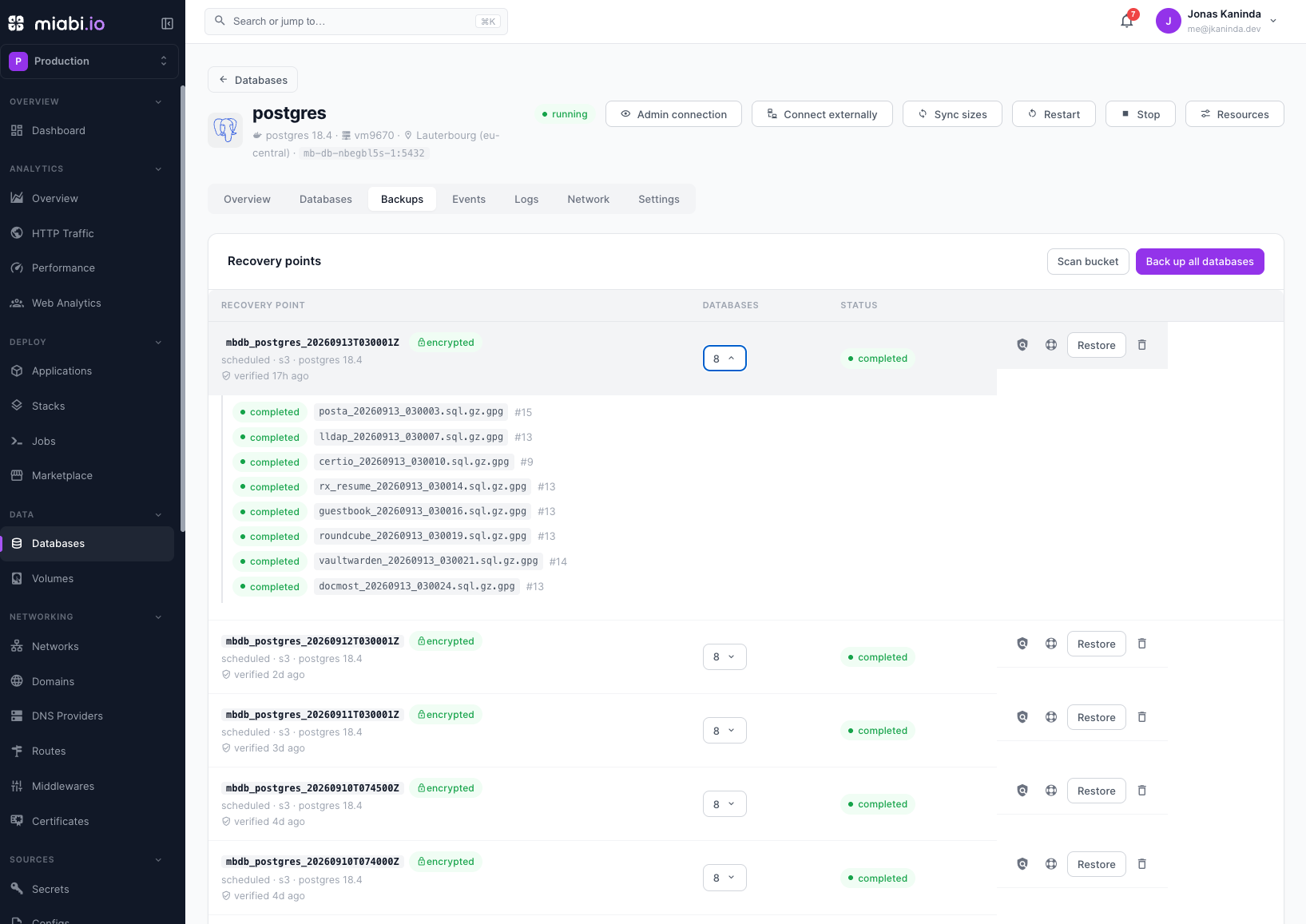
A recovery point backs up every database on an instance together, so they can be restored as a set: an app whose data spans several databases comes back consistent. Recovery points are stored in object storage so they survive losing the host. They need the workspace S3 target, and the Recovery points tab tells you so until one is configured.
Taking, adopting and scheduling recovery points is an Enterprise feature. Listing, verifying, restoring, downloading a recovery kit and deleting existing recovery points work in every edition, so a license you never bought — or one that has lapsed — never puts a recovery point out of reach. Per-database backups above are free.
Taking a recovery point
Select Back up all databases. Miabi dumps each database in turn and records them as one
recovery point, with a reference such as mbdb_<instance>_20260916T020000Z. Expand the
Databases count to see each database's artifact, backup number, and size. When a recovery point completes, Miabi checks
it against the bucket straight away.
To take them on a schedule, use the form below the list: Cron (UTC), Keep last (0 = all), and Max age days (0 = ∞), then Add schedule. Retention only runs after a scheduled recovery point, and the newest successful one is never deleted, whatever the policy says. A recovery point with a pinned backup in it is kept too.
Encryption
When the workspace has a backup passphrase, each recovery point is encrypted with a random data key of its own, and that key is sealed under the passphrase. That is what makes the passphrase rotatable without rewriting the backups. An encrypted recovery point shows an encrypted badge.
Next to its artifacts, each recovery point writes a small cleartext descriptor: the instance, engine, version, its databases, and the sealed key. It holds none of the data, but it lets anyone with bucket access see what the bucket contains, and lets you read the backups back even without the Miabi install that took them.
Verifying a recovery point
Select the Verify action (shield icon) to check the recovery point against the bucket. Every artifact must still be there at the size it was written, and the sealed key must still open with the current passphrase. The row then shows verified with the time of the check, or failed verification with the reason, naming the artifact that is missing or wrong.
Verification does not load the dumps back, which would cost the size of the backup on every check. It proves the recovery point is intact and openable, not that each dump restores cleanly.
The recovery kit
The Download recovery kit action (lifebuoy icon) downloads a Markdown document describing how to restore this recovery point without Miabi: where the artifacts are, the sealed key, the exact encryption format, and the commands that get from your passphrase to a restorable dump. It never contains the key itself, so it is safe to keep beside the backups. See the recovery kit.
Finding recovery points in the bucket
Scan bucket lists every recovery point under the workspace's database backup path, including ones this install has no record of, such as those taken before a reinstall or by another Miabi. Each entry shows its engine and version, how many databases it holds, whether it is encrypted, and whether it is known or not in this install. It also says ready to restore when it can be opened, or why it can't (for example, artifacts missing from the bucket, or sealed with a different passphrase than the workspace holds).
Select Adopt on an unknown recovery point to add it to this instance's history so it can be restored. Adopting only writes records; it touches no data and is safe while the instance serves traffic. Artifacts are matched to the instance's databases by name. An artifact whose database doesn't exist on this instance is skipped and reported, not created, so create any missing database before you adopt.
Volume archives
Volume archives capture the full contents of a volume as a compressed archive in the workspace S3 target. Open the volume, go to its Backups tab, and select Back up now. The list shows each archive's size and status.
There is no local destination for volume archives. Configure the workspace S3 backup target first; until then the tab shows that volume backups are disabled.
Volume recovery points
Volume recovery points are part of Miabi Enterprise (the recovery_points feature, which also
covers database recovery points). Without it, Back up now takes a plain archive as above.
With the feature, Take recovery point records a named recovery point, such as
mbvol_<volume>_20260921T030000Z, instead of a plain archive. Each one is stored under its own
prefix, <volume path>/<volume>/<ref>/, beside a small cleartext info.json that describes the
volume, storage class, node, size and consistency but holds none of the data.
- Encryption. When the workspace has a backup passphrase, each point is encrypted with a random data key of its own, sealed under the passphrase, exactly like database recovery points. It shows an Encrypted badge. Rotating the passphrase re-seals volume points too.
- Verification. Each point is checked against the bucket as soon as it lands: the archive must
be there at the size it was written, and the sealed key must still open with the current
passphrase. Select the Verify action (shield icon) to check again. A failed check raises a
backup_failedalert. - Pinning. Select the pin action to keep a point whatever the retention policy says.
- Schedules. Under Recovery point policy, set Cron (UTC), Keep last (0 = all) and Max age, days (0 = none), then Add schedule. Retention runs after each scheduled point completes. Pinned points are kept and do not count towards Keep last, and the newest completed point is never deleted. Plain archives are never pruned.
Deleting a point or archive removes its objects from the bucket as well as its record.
Points are taken hot: the application keeps running and writing while the volume is read, so a file being written at that moment (a SQLite database, an upload in progress) can be captured half-written. Each point says so with a Hot badge, and the restore dialog warns about it. For a database, use database backups or a database recovery point instead of an archive of its volume.
If the licence lapses, existing points stay listed, verifiable, deletable and restorable. Existing schedules can be paused or deleted, but new points and schedule changes need a valid licence.
Restoring
A restore always goes back into the same database or volume the backup was taken from.
A database backup
Select Restore on a backup. The dialog shows the backup's note, the engine version it was taken from (and the version the instance runs now, if different), and whether it is encrypted. Pick a Method:
| Method | Effect |
|---|---|
| Normal | Restores over the existing database. |
| Force | Drops and recreates the database first, then restores. This cannot be undone. |
An encrypted backup is decrypted with the workspace backup passphrase, so restoring needs the same passphrase it was taken with.
A backup taken from a newer major engine version than the instance runs is refused, because the
load would fail partway through, possibly after Force had already dropped the database. Upgrade
the instance first, or restore into one that runs a matching version. (The API accepts
allow_version_mismatch to attempt it anyway.)
From an uploaded dump
Restore from file loads a dump you have on disk into the selected database: a .sql.gz, .sql,
or .dump produced by the matching engine. Drop the file in, choose Normal or Force, and
select Restore. The upload is removed from the host afterwards.
A recovery point
Select Restore on a completed recovery point to restore every database in it. Their current contents are overwritten. The result names any database that failed, so a partial restore is visible.
A volume archive
Select Restore on a completed archive or recovery point in the volume's Backups tab. The archive's contents overwrite the volume's data. An encrypted recovery point is decrypted with the workspace backup passphrase, so the workspace must still hold the passphrase it was sealed under (or a later one it was rotated to).
Restoring overwrites existing data. Confirm you have the right backup before proceeding, and prefer Normal unless you need the database dropped first.
Viewing backups is open to every workspace member. Running, scheduling, restoring, downloading and deleting backups, and scanning or adopting recovery points, need the Developer role or higher. Configuring the backup target is admin-only.