Storage classes
By default Miabi creates every volume where Docker keeps its own data — usually
/var/lib/docker/volumes on the operating-system disk. On a dedicated server that is rarely where
you want tenant data: the fast NVMe and the bulk SATA disks you bought are mounted somewhere under
/mnt, and the OS disk is the one drive you did not buy for storage.
A storage class is a directory you register as a place the platform may create volumes in.
Community holds two classes in total, the built-in default below included — so one disk of
your own, shared across the fleet if you mount it on every node.
Enterprise lifts the cap. Reaching it refuses the next
class and nothing else: existing classes keep serving their volumes, including after a license
lapses.
You register the directory. A workspace picks a class by name — it never sees, types, or chooses a host path.
That inversion is what makes classes safe to offer to ordinary workspaces, unlike a host-path volume, which needs a privileged workspace precisely because the tenant supplies the path.
The built-in class
Every install has one class, default, and it has no path of its own: volumes on it are created
exactly the way Docker creates them, wherever the engine keeps its data. It cannot be deleted or
re-pointed, and every volume that existed before you registered any class belongs to it.
An install that registers no class behaves exactly as it always has. Nothing moves, nothing changes, and the storage-class field never appears in the volume form.
Registering a class
-
Mount the disk on the node — via
/etc/fstabor a systemd mount — and create the directory Miabi will own, for examplemkdir -p /mnt/ssd1/miabi. -
Go to Admin → Infrastructure → Storage classes and select New storage class.
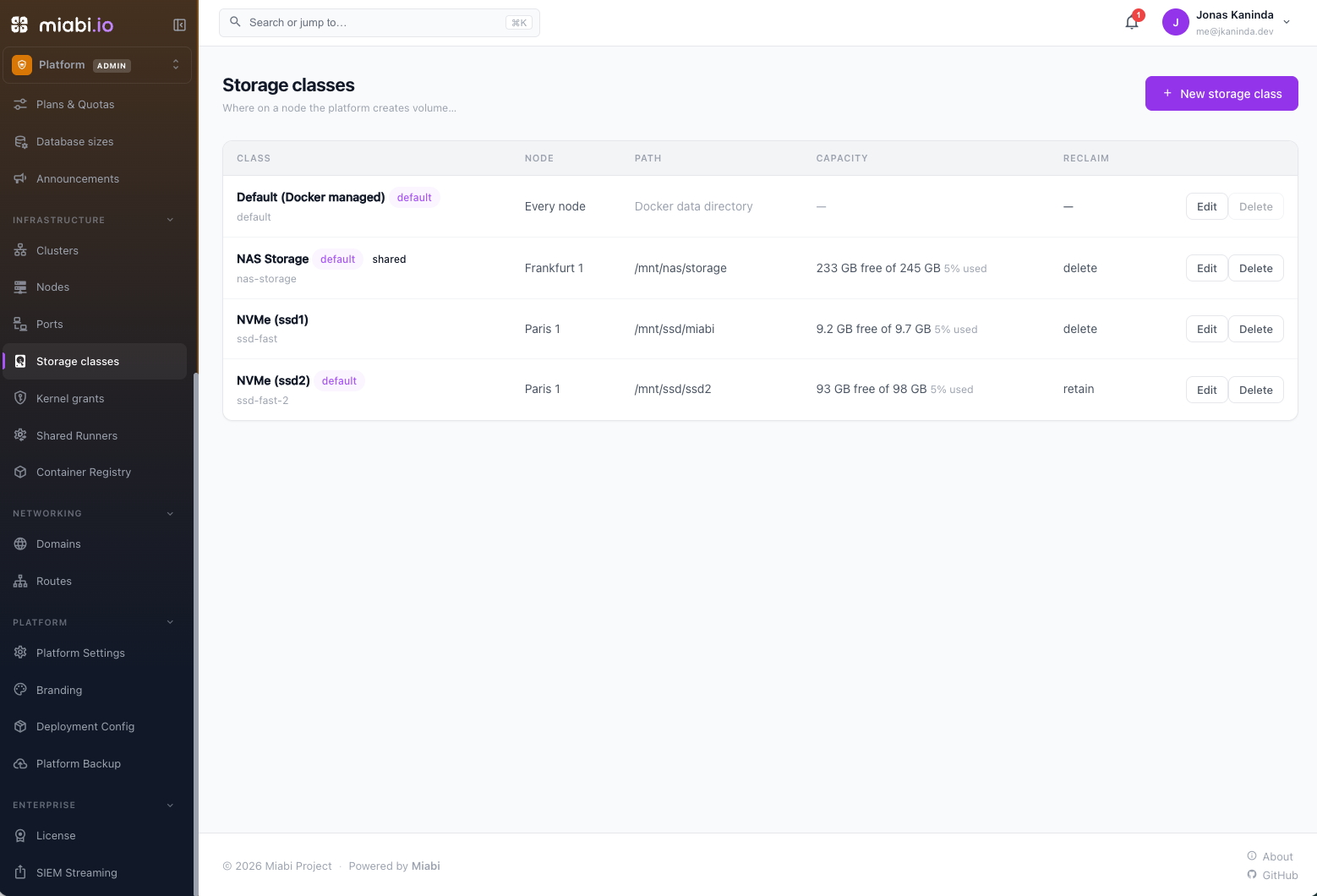
-
Fill in:
| Field | Meaning |
|---|---|
| Name | The handle workspaces and manifests ask for, e.g. ssd-fast — a short lowercase slug. Immutable. |
| Display name | What workspaces see instead of the path, e.g. "NVMe (ssd1)". Editable at any time. |
| Node | The node this directory exists on. |
| Path | The directory Miabi owns. Each volume gets its own subdirectory under it. Immutable. |
| Reclaim policy | Whether deleting a volume also deletes its directory (see below). |
| Enabled | Off blocks new volumes; existing ones keep working. |
| Default for this node | The class used when a volume names none. |
| Shared across the cluster | The same filesystem is mounted at this path on every node. |
The path is checked on the node before the class is saved. If the disk is not mounted there, the registration fails then and there, naming the node — rather than a tenant's first deploy failing weeks later.
For a server with SSDs at /mnt/ssd1, /mnt/ssd2 and /mnt/ssd3, register one class per disk
(ssd-fast, ssd-bulk, …) and mark one as the node's default. Workspaces then choose by name.
Why the name and the path can never change
Both are dereferenced by other things, not merely displayed:
- Every volume stores its class name, and GitOps manifests reference the class by it — in
repositories Miabi does not own and cannot rewrite. Renaming would either orphan every volume
pointing at the old name or silently change what a manifest saying
ssd-fastresolves to. - Volumes already hold their data under the path. Editing it would move nothing; it would point live volumes at a directory their contents are not in, and the next container start would either fail to mount or come up with an empty disk.
To genuinely change either: register a new class, move or recreate the volumes, and disable the old one. Everything else — display name, description, default, enabled, reclaim policy — is freely editable.
Choosing a class for a volume
When more than one class is available, the volume form shows a Storage field listing the classes the workspace's plan allows, by display name. Leave it alone and the volume goes to the plan's default, then the node's.
In a manifest, name it with storageClass:
apiVersion: miabi.io/v1
kind: Volume
metadata:
  name: pgdata
spec:
  size: 20Gi
  storageClass: ssd-fast
Omitting storageClass means "whatever this install decides" — not default. A manifest silent
about the class does not drift against a volume that landed on one, which is what keeps the same
repository applicable to a laptop, a bare-metal box and a cloud node whose disks differ.
Changing storageClass on an existing volume fails the apply:
volume "pgdata" is on storage class "ssd-fast"; moving it to "bulk" would relocate its data.
Delete it and apply again, or migrate it
That is deliberate. Converging it would mean deleting and recreating the volume — destroying data
from a git push.
Choosing a class for a database
A managed database keeps its data in a volume too, and it lands on a class the same way. When more than one is available, the Create database form shows the same Storage field; leave it alone and the data goes to the plan's default class, then the node's. An instance's class is shown on its detail page beside the data volume.
It is fixed at creation, for the same reason a volume's is: the data is already on that disk, and changing the field would have to move it. To put an existing database on another disk, take a backup, create a new instance on the class you want, and restore into it.
A database declared in a manifest always uses the workspace's
default class — storageClass is a volume field, not a database one. Choose the class in the
console or the API when a database needs a specific disk.
Per-plan storage classes
A plan decides which classes its workspaces may use and which one they get by default, so fast storage can be a paid tier rather than an open door. Set Storage classes and Default storage class on the plan (or a per-workspace override).
Resolution order, most specific first:
- the class named on the request or in the manifest
- the workspace's override
- the plan's default class
- the node's default class
- the built-in
default
A workspace asking by name for a class its plan does not offer is refused. A workspace that asks for nothing is never refused — if the node's default is not on its plan, it quietly gets the first class the plan does offer.
Deleting a volume, and the reclaim policy
docker volume rm removes the volume's record and leaves the data on the disk behind it. So the
class says explicitly what happens to the directory:
- Delete (default) — the volume's directory is removed with the volume.
- Retain — the directory is kept, for you to reclaim by hand.
Deleting a class is refused while any volume still references it. To stop new volumes landing on a disk without touching the ones already there, disable the class instead.
Capacity
Each class's filesystem is measured on the same schedule as volume usage, so the storage-classes
page shows free space per disk, and each node's page lists the classes on that node with their used
and total space (see Nodes & Capacity).
Volumes on a class are sized by measuring their directory, because docker system df reports the volume's mountpoint stub rather than the data behind the bind.
What this is not
- It does not move Docker's
data-root. That is a daemon setting requiring a restart of every container, it relocates image layers too, and it can name exactly one directory — so it cannot serve a multi-disk server at all. If you want everything on one big disk, setdata-rootin/etc/docker/daemon.jsonbefore installing Miabi. - It does not move existing volumes. Registering a class changes nothing that already exists.
- It is not a hard size cap. A volume's declared size is still an accounting number; enforcement depends on the node's storage backend.