Single Sign-On (SSO)
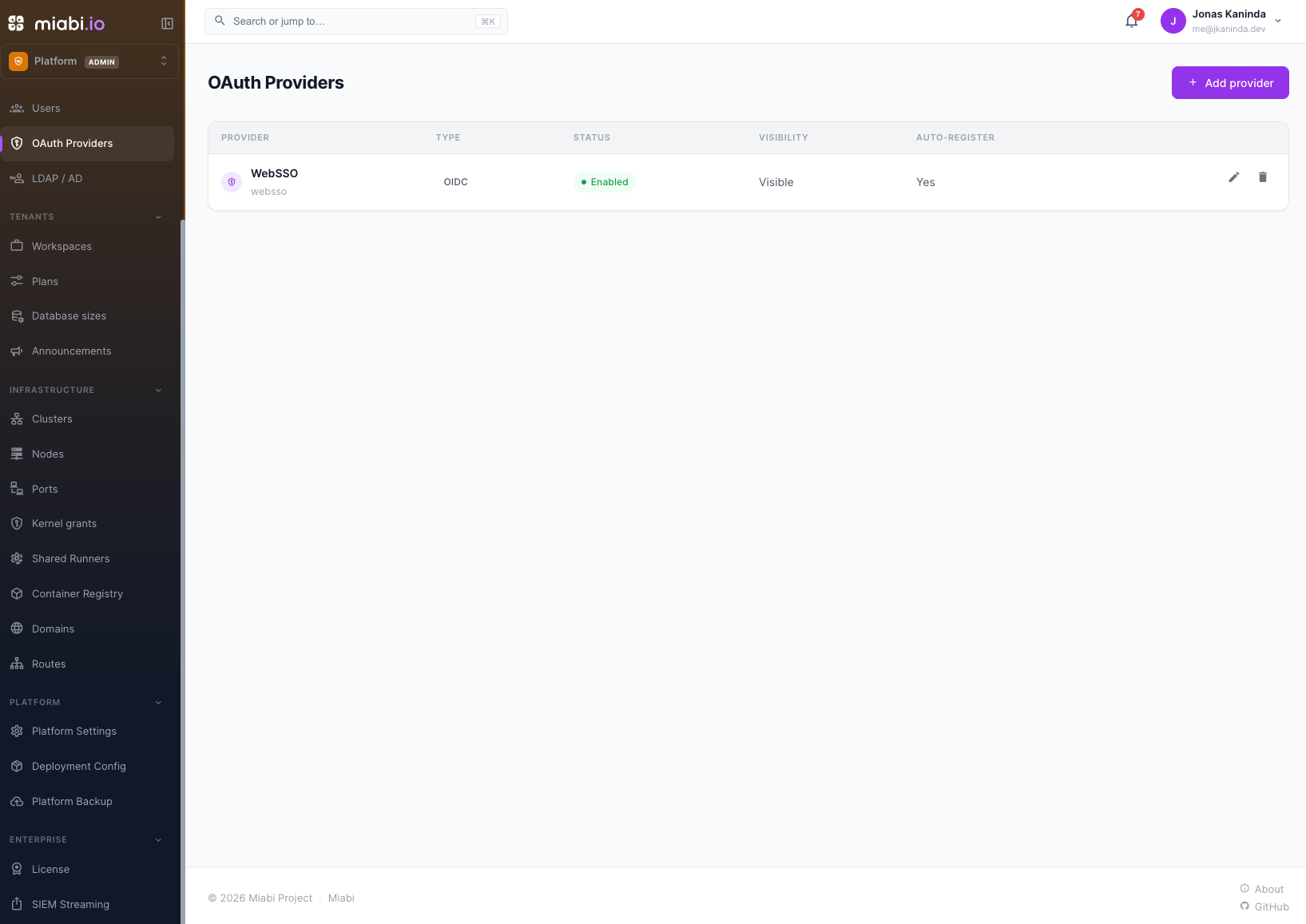
Single sign-on lets users authenticate with an external identity provider instead of a Miabi password. Miabi supports OAuth 2.0 / OpenID Connect (OIDC) out of the box, with a built-in Google connector plus a generic OIDC option for any compliant provider.
Supported providers
| Provider | Protocol |
|---|---|
| OAuth 2.0 / OIDC (well-known discovery) | |
| Generic OIDC | OpenID Connect (any compliant IdP) |
There is no GitHub connector. GitHub is not an OIDC provider, so it is reachable neither as a built-in option nor through the generic OIDC path.
Configuring a provider
- Go to Admin → Identity → OAuth Providers and click Add provider.
- Enter a Display name and choose the Type: Google or Generic OIDC.
- Enter the Client ID and Client Secret from your identity provider.
- For generic OIDC, supply the Issuer (the OIDC discovery base URL, e.g.
https://id.example.com) so Miabi can read the provider's endpoints. You can override the auth, token and userinfo URLs, the email/name/username claims, and the scopes. - Register Miabi's callback URL with your provider. It isn't shown in the form: it is
https://<your-miabi-host>/api/v1/auth/oauth/<name>/callback, where<name>is the provider's Name. - Optionally restrict Allowed domains, and set Auto-join workspace so new SSO users join a workspace with a chosen role.
- Optionally pick an Organization. Accounts registered through this provider then belong to that tenant realm — see Which organization SSO users land in.
- Make sure Enabled is checked, then save. There is no connection test, so try signing in.
The client secret is treated as a secret and is encrypted at rest.
Signing in with SSO
Once a provider is configured, users see a Sign in with… button on the login screen. Authenticating with the provider creates or links a Miabi account, and the user lands in their workspace.
SSO governs how users sign in. Their permissions inside a workspace are still determined by their role.
Profiles of provisioned accounts
An account created by a provider — OAuth/OIDC, SAML, LDAP or SCIM — is recorded with that provider as its auth source, and its name and username become read-only. The Profile page shows them but offers no Save, and the API refuses the edit, because the provider is the source of truth for the identity: a local rename would only drift from the directory everyone else reads.
Change the name at the provider instead. Email is already admin-managed for every account, and workspace roles are unaffected.
Linking is not provisioning: when SSO matches an account that already exists by email or handle, that account keeps the auth source it had. A local account whose owner also signs in through SSO stays theirs to edit.
Accounts provisioned before this was recorded are still marked local, since nothing distinguishes them after the fact. They become read-only only if the provider creates them again.
Which organization SSO users land in
An account created through a provider belongs to the provider's organization, so a customer's people sign in with the customer's identity provider and land in the customer's realm. A provider with no organization registers into the default one.
- Only registration decides a realm. Signing in never moves an account that already exists — a person who already belongs to one organization stays there, whichever provider they authenticate with.
- A provider's organization is set once, when it is created, and is read-only afterwards. Changing it would only split that provider's users across two realms, since the ones already registered do not move.
Community vs Enterprise
| Capability | Community | Enterprise |
|---|---|---|
| OAuth2 / OIDC providers | One provider | Multiple providers |
| Hidden providers | — | ✅ |
| LDAP / Active Directory | — | ✅ |
| SAML 2.0 | — | ✅ (API only) |
| Enforced SSO (disable password login) | — | ✅ |
| SCIM 2.0 user provisioning | — | ✅ (API only) |
The Community edition supports a single configured SSO provider. The Enterprise edition adds multiple simultaneous providers, hidden providers, LDAP / Active Directory, SAML 2.0, enforced SSO, and SCIM 2.0 for automated user provisioning and deprovisioning. See Community vs Enterprise for the full comparison.
- Hidden providers. Check Hidden on a provider to keep its button off the login page. Users reach it through Continue with SSO, which asks for their email address to find their sign-in provider.
- SAML and SCIM have no console page yet. Manage SAML connections with
/api/v1/admin/sso/saml, SCIM tokens with/api/v1/admin/scim/tokens, and the enforced-SSO policy withPUT /api/v1/admin/organization— see the API reference at/docson your instance.
LDAP / Active Directory
On Enterprise (sso_ldap), Miabi can authenticate users against an LDAP or Active Directory server. Configure a directory under Admin → Identity → LDAP / AD: host, port, TLS mode, bind DN and password, user base DN and filter, attribute names, and optional group lookup. Use the Test connection button on a saved connection to check it.
Directory users sign in on the normal login form: when a password doesn't match a local account, Miabi tries the directory. A successful bind creates the Miabi account on first sign-in (or links an existing one by email). Group mappings then grant platform-admin rights, or a workspace role, to members of a directory group. Without mappings, directory users get an account but no admin or workspace access.
Pair SSO with Two-Factor Authentication at your identity provider for layered protection.