Two-Factor Authentication
Two-factor authentication (2FA) adds a second step to login: after your password, you enter a time-based one-time code from an authenticator app. Miabi supports TOTP (Time-based One-Time Password), compatible with apps like Google Authenticator, 1Password, Authy, and Aegis.
Why enable 2FA
A password alone can be phished or leaked. With 2FA, an attacker also needs the rotating code from your device, dramatically reducing the risk of account takeover. We recommend it for every account, and especially for Owners and Admins.
Enabling 2FA
- Go to Account → Security → Two-Factor Authentication.
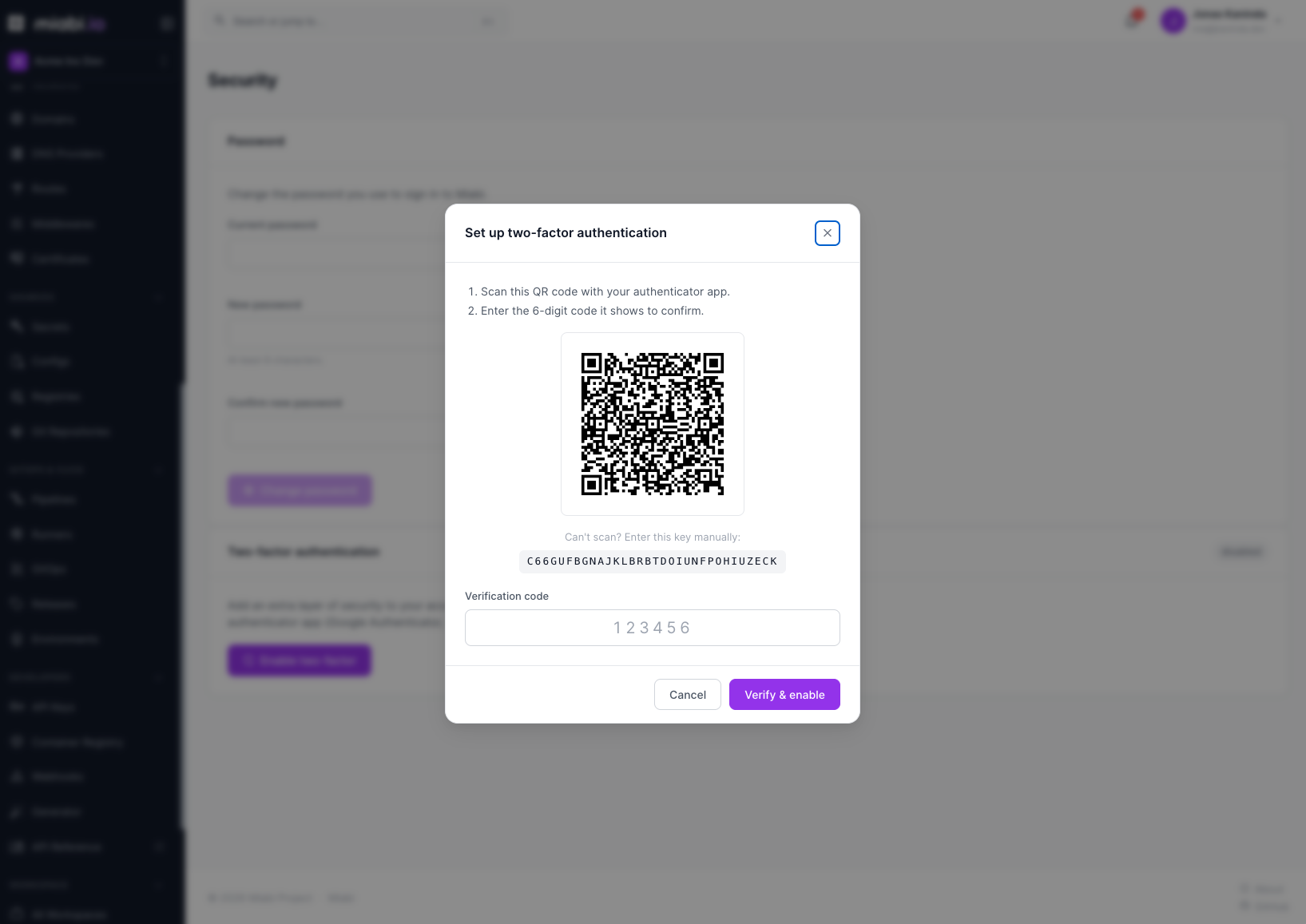
- Click Enable two-factor. Miabi shows a QR code and a text secret.
- Scan the QR code with your authenticator app (or enter the secret manually).
- Enter the current 6-digit code to confirm enrollment.
- Miabi displays your recovery codes — save them now.
Once confirmed, every future login will prompt for a TOTP code after your password.
Recovery codes
During enrollment, Miabi generates a set of single-use recovery codes. Use one to sign in if you lose access to your authenticator device.
Store recovery codes somewhere safe and offline (a password manager or printed copy). Each code works only once. If you exhaust or lose them, click Regenerate recovery codes on Account → Security while still signed in.
Logging in with 2FA
- Enter your email and password.
- When prompted, enter the current code from your authenticator app.
- If you can't reach your device, enter one of your recovery codes in the same field instead.
Disabling or resetting 2FA
You can turn 2FA off from Account → Security with Disable, confirming with a current authenticator code or a recovery code. If you've lost both your device and your recovery codes, a workspace Admin cannot bypass your 2FA — contact your platform administrator, who can assist through the platform admin tools.
Related
- 2FA protects interactive logins; programmatic access uses API Tokens.
- For organization-wide sign-in policies, see SSO.