Organizations
An organization is a tenant realm. It owns workspaces, the user accounts that belong to them, and — on Enterprise — the locations their workloads run on. Where a workspace is the isolation boundary for one project's apps and data, an organization is the boundary for a customer: the people, their workspaces, their hardware, and the identity provider they sign in through.
Every install has one. Community keeps the single built-in default organization it has always
had, and every workspace and user belongs to it. Creating a second organization is an
Enterprise feature — it is the point at which one Miabi
instance starts serving more than one customer.
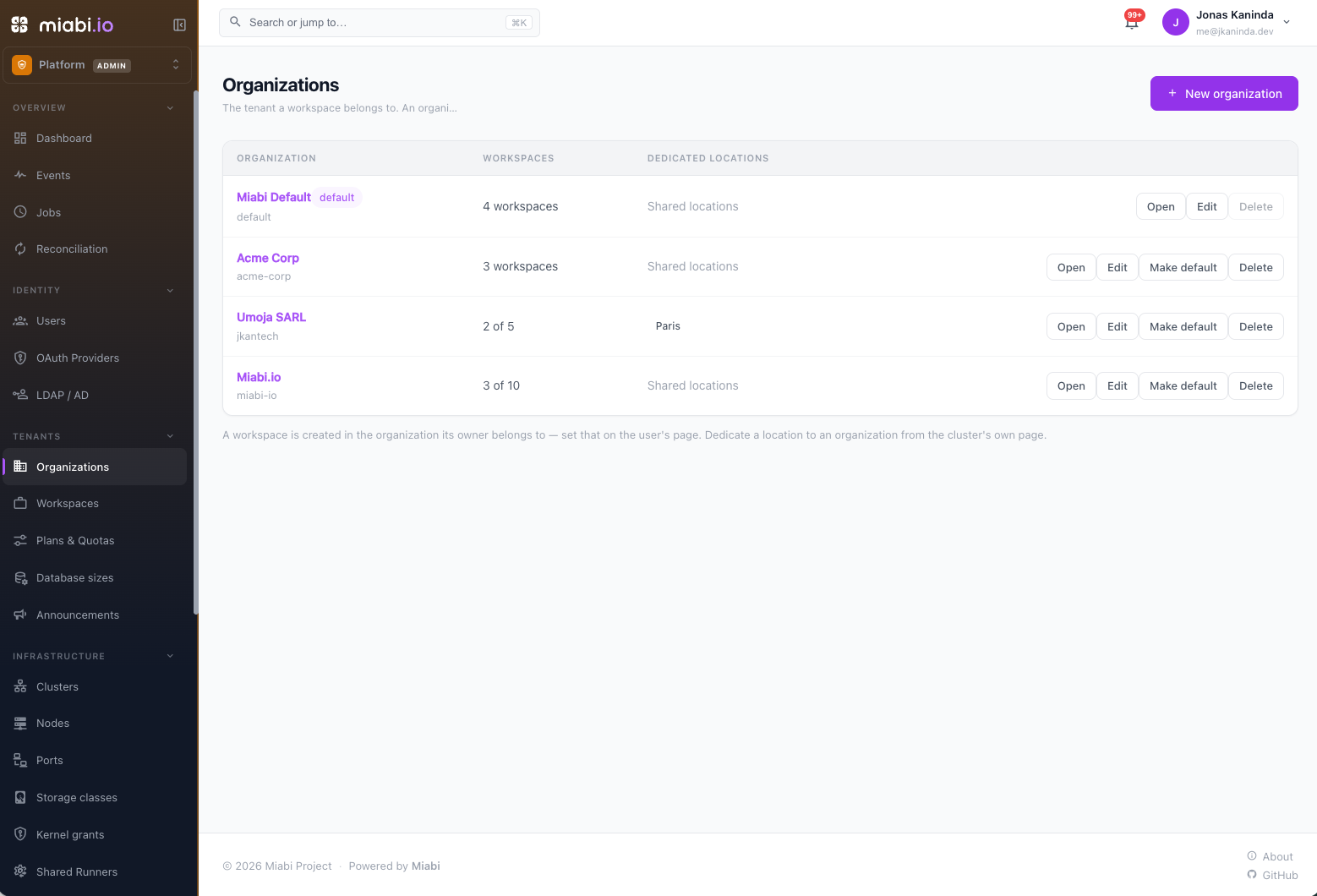
When you need one
You do not need organizations to separate projects, environments, or teams — use workspaces, which already isolate data, secrets, networking and members. Reach for an organization when the tenants are different customers, and one of these is true:
- They sign in through their own SSO provider, and accounts from it must never land in someone else's realm.
- They are capped: this customer may create at most five workspaces.
- They run on their own nodes — hardware nobody else shares.
- Someone is accountable for them, and you want that recorded rather than remembered.
Creating one
Platform admin → Tenants → Organizations → New organization.
| Field | Meaning |
|---|---|
| Display name | The label shown throughout the console. Free text, editable at any time. |
| Handle | The URL-safe identifier, e.g. acme. Derived from the display name if you leave it blank, lowercase letters, digits and hyphens. |
| Owner | The user accountable for the organization. Optional here — see Ownership. |
| Workspace limit | How many workspaces the organization may hold in total. Unlimited by default; 0 allows none. |
| Workspaces per user — owned | How many workspaces one of its users may own. Inherits the platform default unless you set it. |
| Workspaces per user — joined as member | How many other workspaces one of its users may join. Inherits the platform default unless you set it. |
| Who can create workspaces | Anyone, anyone except invited users, or admins only. Inherits the platform setting unless you set it. See below. |
The handle is immutable after creation: it is what admins and the API address the organization by. Rename the display name instead.
Workspace limits
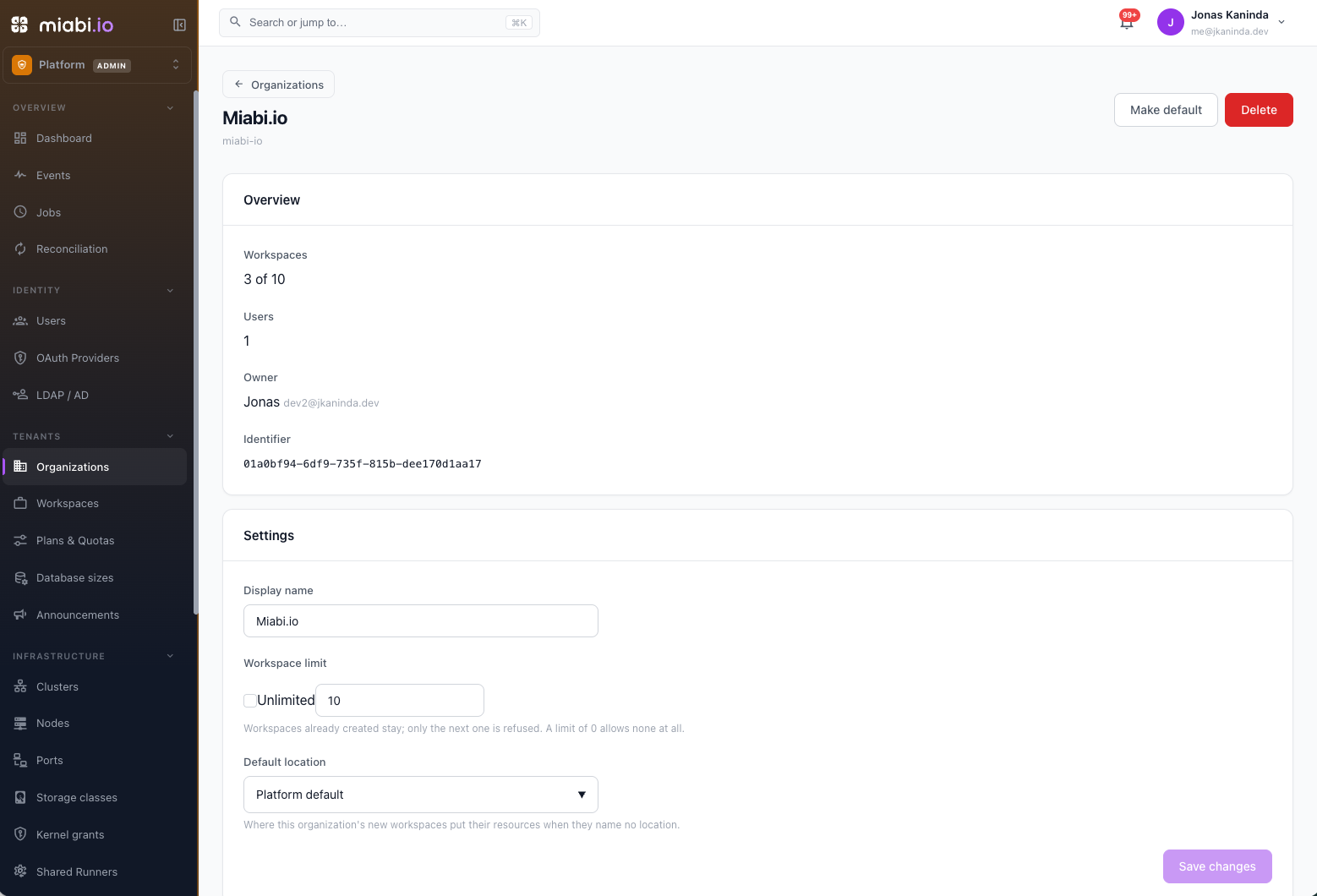
With an Enterprise licence the organization is where workspace limits are configured. It carries three, set from Admin → Organizations → (organization):
| Limit | Caps |
|---|---|
| Workspace limit | workspaces in the whole organization |
| Workspaces per user — owned | workspaces one of its users may own |
| Workspaces per user — joined as member | other workspaces one of its users may join |
The two per-user limits offer three choices: inherit the platform default, unlimited, or a number. Inherit is what every organization starts on, so Platform Settings decides them until an organization sets its own. A per-user override on an individual account beats both.
Organization limits need a licence. Without one the platform settings govern outright — a stored organization limit is ignored rather than enforced, so a licence that lapses never leaves a tenant bound by a cap its operator can no longer edit. Community keeps the single default organization it has always had, with its limits in Platform Settings.
Every limit follows the same convention as plans: -1 is unlimited and 0 allows none. Limits apply
to the next create — workspaces that already exist are never removed, and a user already over a
newly lowered limit keeps what they have.
Reaching a limit refuses the create with a message naming which limit stopped it, so a tenant is never left guessing whether the platform is broken.
Who can create workspaces
Limits count workspaces; this setting decides who may start one at all. It has three modes:
| Mode | Who may create a workspace |
|---|---|
| Anyone | Every user. |
| Anyone except invited users (default) | Every user except those who created their account from an invitation. |
| Admins only | Platform admins and the organization's owner. |
Platform admins can always create workspaces, whatever the mode. The platform-wide mode is in Platform Settings; with an Enterprise licence each organization can set its own, and an admin can allow or deny one user from their account page, which beats both.
The default changes nothing for existing accounts: only accounts created from an invitation are affected. Use it so the teammates a customer invites can't start workspaces nobody is accountable for, or pick Admins only to run a closed platform where every workspace is opened by an admin and everyone else gets in by invitation.
The mode governs creating a workspace only. Accepting an owner-role invitation still works,
subject to the owned-workspaces limit, and tightening the mode never removes or hides a workspace a
user already has. Users who may not create one don't see New workspace in the console; the API,
CLI and workspace restore refuse with 403 and the code WORKSPACE_CREATION_NOT_ALLOWED.
Ownership
Every organization has an owner — the user accountable for it. The owner is recorded on the organization, shown on its detail page, and set in one of three ways:
- Named when you create it. An admin picks the owner in the New organization form, or later in Settings. This is the explicit case, and it always wins.
- Adopted by the first user. An organization created without an owner takes the first user who joins it — including one provisioned by SSO. This fills a gap so that a realm is never accountable to nobody; it never overrides an owner an admin named, and once taken it does not move when a second user arrives.
- The default organization takes the first platform admin. It is seeded before any user exists, so it cannot take an owner at creation the way a later one can.
Deleting a user releases the organizations they owned, which then show no owner until an admin names one or a new user adopts them. An organization is never left pointing at an account that no longer exists.
Ownership here is accountability, not permission. It records who answers for the tenant; it grants nothing on its own. What a person may do is still decided by their platform-admin status and per-workspace role.
Signing in: attaching an SSO provider
An OAuth 2.0 / OIDC provider can be attached to an organization. Every account registered through that provider then belongs to it, with no per-user step: the customer's people sign in with the customer's identity provider and land in the customer's realm.
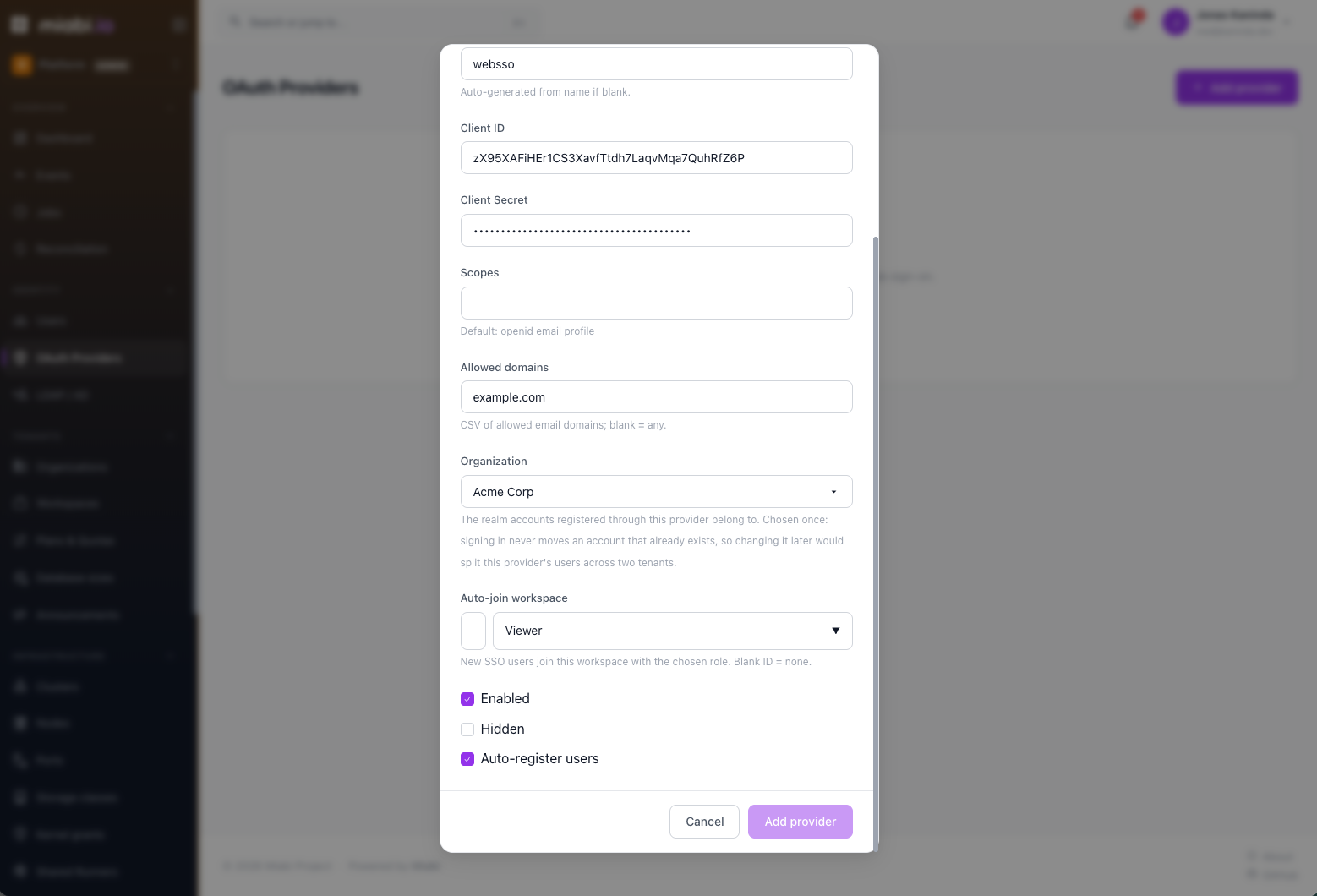
Two rules make this safe to rely on:
- Only registration decides a realm. Signing in through a provider never moves an account that already exists. Somebody who already belongs to one organization stays there, whichever provider they authenticate with.
- A provider's organization is set once, when the provider is created. Because existing accounts are never moved, changing it later would only split that provider's users across two realms — so the field is read-only afterwards.
A provider with no organization registers into the default one, which is how every install behaved before providers could be attached at all.
Pair this with the organization's enforced-SSO policy (Enterprise) to require that its people sign in through the provider rather than with a local password.
Where its workloads run
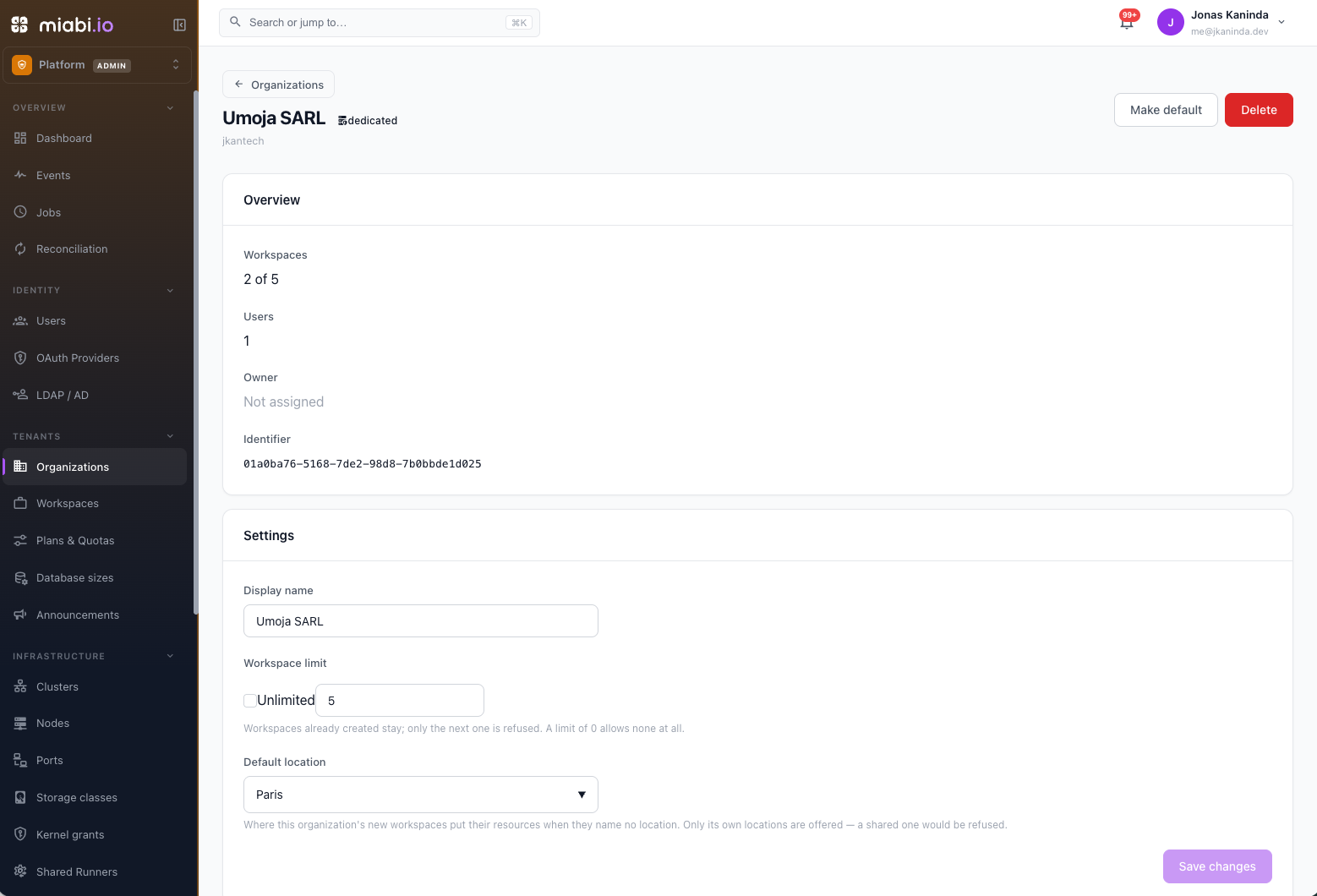
An organization can be given a default location — the cluster its new workspaces place resources in when they name none.
Beyond that, a cluster can be dedicated to an organization. A dedicated location is seen only by that organization, and nothing outside it can be placed there — not even by a platform admin. In return, an organization that owns any location is confined to the ones it owns, so its workloads never land on shared hardware.
Dedicating a location is done from the location itself: Platform admin → Infrastructure → Clusters → cluster → Belongs to → Change. It is refused while the location still runs another organization's workloads — they would keep running somewhere their own workspace could no longer see, scale, or place beside. Move or delete them first.
See Cluster mode for what a location is, and Plans & Quotas for how placement policy interacts with plans.
Structure
An organization holds users, and each user holds workspaces — the ones they own, plus the ones they were invited into. Workspaces are not created inside an organization directly: a user creates one, and it joins whichever organization that user belongs to.
Organization: default                  (every install has one — the home realm)
├── User: alice
│   ├── Workspace: alice-blog          (owner)
│   │   ├── Applications
│   │   ├── Databases
│   │   └── Members: alice · bob
│   └── Workspace: alice-lab           (owner)
├── User: bob
│   ├── Workspace: bob-api             (owner)
│   └── Workspace: alice-blog          (member — developer)
└── User: carol
    └── Workspace: internal-tools      (owner)

Organization: acme                     (Enterprise — a second tenant realm)
├── Users                              (registered through Acme's SSO provider)
├── Workspace: acme-prod
│   ├── Applications
│   ├── Databases
│   └── Members
└── Workspace: acme-staging
Read that as three levels:
| Level | What it is | Who it belongs to |
|---|---|---|
| Organization | The tenant realm — owner, workspace cap, SSO provider, locations. | The install. |
| User | An account. Belongs to exactly one organization, decided at registration. | The organization. |
| Workspace | The isolation boundary for one project's apps and data. | The user who created it — and, through them, their organization. |
alice-blog appears twice on purpose: Alice owns it, Bob joined it. That is one workspace
with two members, not two workspaces, and it is why the per-user limits are counted separately
(owned versus joined as member).
The default organization
default is not a scratch realm for internal tooling — it is the home realm for ordinary
accounts. On Community it is the only one, so every user and every workspace lives there. On
Enterprise it stays the fallback: any account that registers without a provider tied to another
organization lands in it, and its workspaces come with it.
So a single install running only default is still the full model — many users, each with their own
workspaces, sharing them with each other by invitation. You add a second organization when you need
a boundary above those users (their own SSO, their own cap, their own hardware), not to give
people separate workspaces.
Membership needs an account
Members are assigned at the workspace level, each with one of the four roles. An organization groups workspaces and accounts; it does not change the per-workspace role enforcement, and it is not a permission scope.
A workspace member must have a Miabi account. Membership is granted only by accepting an invitation while signed in, so there is no way to add a person who has never registered:
- You invite by email address, and the invitation sits pending until someone signs in with that address and accepts it. Inviting an address that has no account yet is allowed — nothing happens until an account exists to accept it.
- Accepting binds the invitation to the signed-in user, and an in-app invitation is only offered to the account whose email it names. Invitations expire after 7 days.
- An invitee with no account can create one from the invitation, even while self-service sign-up is closed, unless an admin turned that off. Otherwise a platform admin, or the invitee's SSO provider, creates the account first.
Accepting also counts against the invitee's own limits: an owner-role invitation against workspaces owned, any other role against workspaces joined as member. A user at their limit cannot accept until one is freed.
See Members & Invitations for the full flow.
Plans and quotas are applied per workspace, not per organization. The organization's own limit is the workspace limits below. See Plans & Quotas.
Deleting one
Platform admin → Tenants → Organizations → organization → Delete.
An organization must be empty first — no workspaces, no users. A delete that still held them is refused rather than silently orphaning them: move them to another realm deliberately. Any locations dedicated to it are released back to shared, since a location owned by an organization that no longer exists would be visible to nobody.
The default organization cannot be deleted. If you want a different one to be the fallback that new workspaces, users and providers attach to, promote it with Make default first.
Multi-tenant isolation
An organization does not replace workspace isolation
— it stacks on top of it. Data, secrets, networks and members are still scoped per workspace and
enforced by workspace_id, whether two workspaces belong to the same organization or not.
What the organization adds is the tenant boundary above that: who the workspaces belong to, which identity provider creates their accounts, and — when you dedicate a location — which machines their containers are allowed to run on.
Next steps
- Manage who belongs to each workspace in Members & Invitations.
- Review what each role can do in Roles & Permissions.
- Attach an identity provider in SSO.
- Give a tenant its own hardware in Cluster mode.