Members & Invitations
Workspaces are how teams collaborate in Miabi. Each member of a workspace holds exactly one role that determines what they can do. This page walks through inviting people, accepting invitations, changing roles, and removing members — all from the web console.
Inviting a member
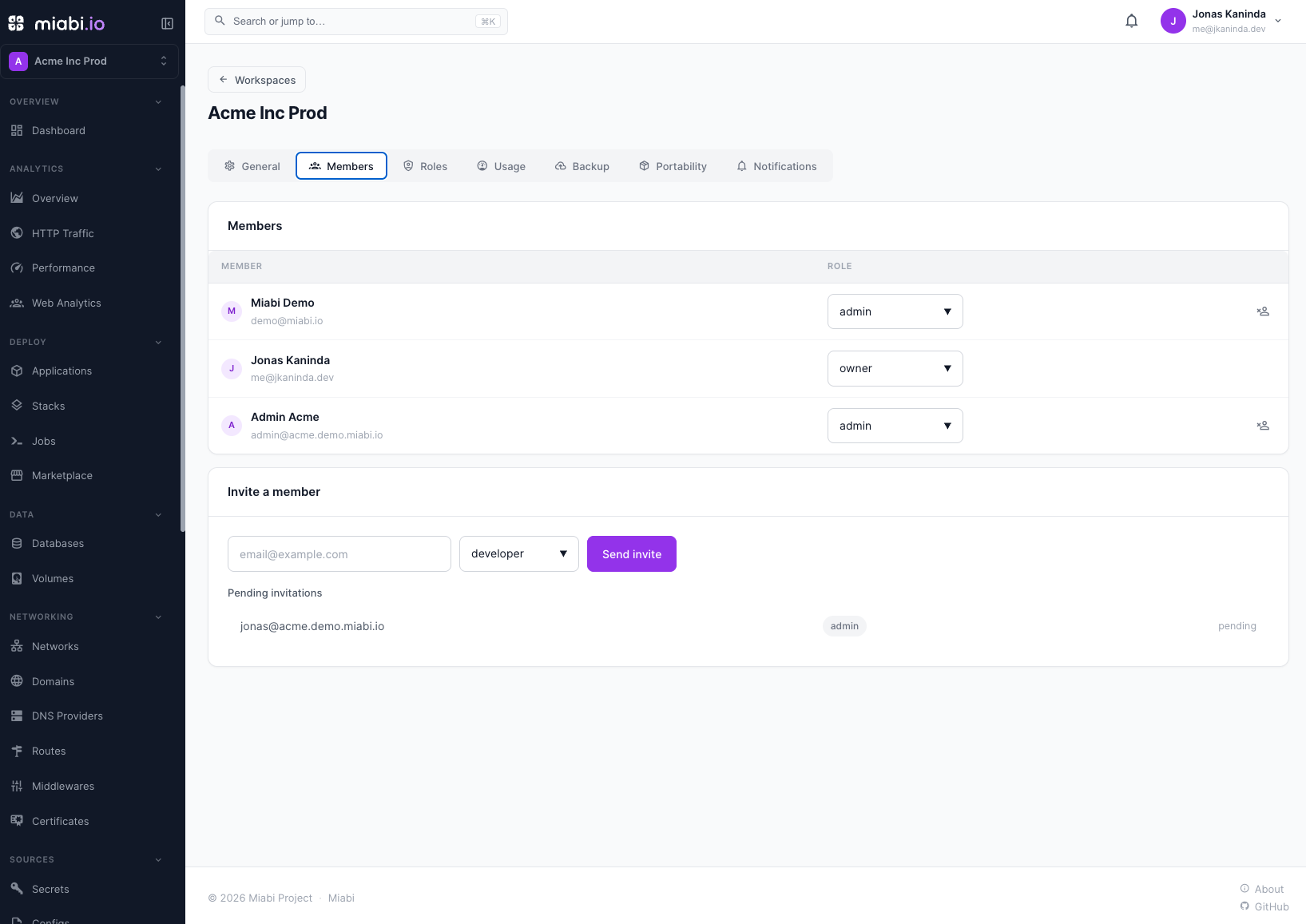
- Open Workspace → Members in the sidebar (Admins and Owners only).
- Under Invite a member, enter the person's email address.
- Choose a role: owner, admin, developer, or viewer. You can't invite someone above your own role — only an Owner can invite an Owner.
- Click Send invite.
When an SMTP server is configured, Miabi emails the invitee an Accept invitation link and the link is never shown to you. Without one, Miabi can't send anything, so the console shows the Invitation link once for you to share yourself. The invitation is listed under Pending invitations until it is accepted. An email can only have one pending invitation per workspace, and inviting is refused once the workspace reaches its plan's member limit.
Accepting an invitation
The invitation link opens a page that adapts to whoever opens it:
| Situation | What happens |
|---|---|
| Signed in with the invited email | Join adds them to the workspace with the invited role. |
| Signed in as someone else | The page names both addresses and offers to sign out. |
| The invited email already has an account | They sign in, and come back to the invitation. |
| No account yet | They create their account from the invitation and land in the workspace. |
| The organization enforces SSO | They continue with single sign-on; the invitation is accepted once they are in. |
A signed-in user can also accept from the Workspace invitations card on their dashboard, which lists every pending invitation addressed to their email. An invitation is single-use and expires after 7 days. There is no re-send: once it lapses, invite the person again.
Signing up from an invitation
Someone invited by email can create their account straight from the invitation, even while self-service sign-up is closed: the invitation is the authorization. They choose a name and a password; the email is the invited one and can't be changed.
The new account:
- is created already verified, since the link only reached the invited mailbox;
- belongs to the inviting workspace's organization;
- is marked as signed up via invitation, which by default means it can't create workspaces of its own — see Who can create workspaces.
The account and the membership are created together: if joining fails (the workspace hit its member limit, or the invitation was used meanwhile), no account is left behind. The allowed signup domains list doesn't apply here, because the inviter chose the address.
Platform admins can turn this off with Let invitees create their account from the invitation in Platform Settings (or MIABI_INVITATION_SIGNUP_ENABLED=false). An invitee without an account then needs a platform admin, or their SSO provider, to create it first.
On a platform without SMTP the inviter holds the link, so they could open it themselves and pick the invitee's password. Share it only with the invitee, or create the account as a platform admin instead.
Changing a member's role
On Workspace → Members, pick the new role from the member's Role dropdown (on Enterprise, custom roles appear there too). The new role takes effect on their next request. Role changes are recorded in the Audit Log.
A workspace always keeps at least one Owner; the last Owner cannot be demoted or removed. To hand a workspace off, promote another member to Owner, then step down. See Owners and the rank guard.
Removing a member
Click the Remove icon on the member's row and confirm. They immediately lose all access to the workspace and its resources. Their API keys aren't revoked, but every request is checked against current membership, so the keys can no longer reach this workspace. The console doesn't offer Remove for Owners; demote an Owner first.
Roles at a glance
| Role | Typical use |
|---|---|
| Owner | Full control, including deleting the workspace. |
| Admin | Manage members, settings, and all resources. |
| Developer | Create and deploy apps, databases, domains. |
| Viewer | Read-only visibility. |
See Roles & Permissions for the full cumulative permission matrix.