User Preferences
Preferences belong to your account, not to a browser. They follow you to a new machine, survive clearing site data, and apply to the CLI where relevant. Find them under your avatar → Preferences.
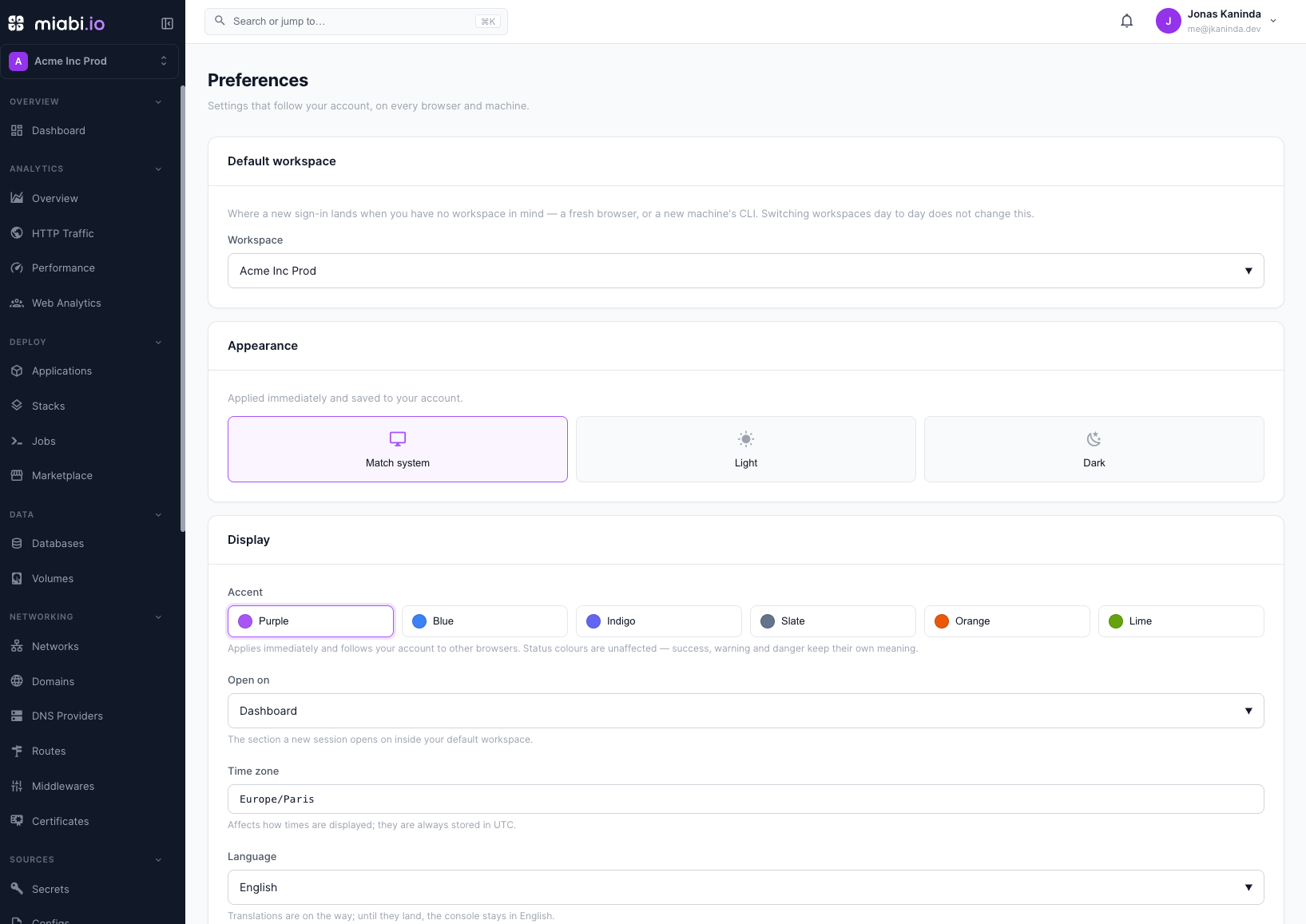
Default workspace
Your default workspace is where a sign-in lands when nothing else names a workspace — a fresh browser, an incognito window, a colleague's laptop, or a new machine's CLI.
Before this existed, the console fell back to whichever workspace happened to sort first, which was the most recently created one. For most people that is the least important workspace they own.
You can set it in two places:
- Preferences → Default workspace, from the full list.
- The pin icon in the workspace switcher, on whichever workspace you are looking at.
Choosing No preference clears it, and sign-ins fall back to the workspace you have belonged to longest.
Switching workspaces does not change your default. Moving between workspaces is navigation; setting a default is a deliberate choice. Conflating the two would make the default drift every time you looked at something else.
Automatic behaviour
- Your first workspace becomes your default automatically — no setting to find.
- If your default names a workspace you have left, or one that was deleted, it is repaired on the next sign-in to your oldest remaining membership. A default can never strand you on a workspace you cannot open.
- Setting a default to a workspace you are not a member of is refused.
It is not a permission
The default workspace is a landing hint and nothing else. Every workspace-scoped request still resolves your membership and role from scratch, so a stale — or forged — value grants no access. It decides where the console opens, not what you may do there.
Appearance
Match system, Light, or Dark. The change applies immediately and is saved to your account, so a second machine opens in the same theme.
Your browser keeps a local copy so the first paint never flashes the wrong theme before your profile loads. If you had a theme set before upgrading, it is adopted as your account preference on first sign-in rather than being reset.
Display
| Setting | Effect |
|---|---|
| Accent | The console's highlight colour: Purple (the default), Blue, Indigo, Slate, Orange or Lime. It applies immediately and follows your account to other browsers. Status colours — success, warning, danger — keep their own meaning. |
| Open on | The console section a new session opens on inside your default workspace — Dashboard, Applications, Databases, Routes, and so on. |
| Time zone | How timestamps are displayed. They are always stored and served in UTC. The page offers your browser's detected zone in one click. |
| Language | English or Français. The whole console, including the sign-in pages, is translated. A value saved before this became a fixed choice is mapped to its language (fr-CA → French), or to English. |
If a platform admin enforces the brand accent under Branding, the Accent picker is locked and shows Set by your organization for every account.
API
Preferences are part of the API like everything else:
| Method | Path | Purpose |
|---|---|---|
GET | /api/v1/me | Returns default_workspace_id (already resolved and repaired) and a preferences object |
PATCH | /api/v1/me/preferences | Partial update — omitted fields keep their stored value |
PUT | /api/v1/me/default-workspace | {"workspace_id": <id or null>}; refused with 403 if you are not a member |