Canary Deployments
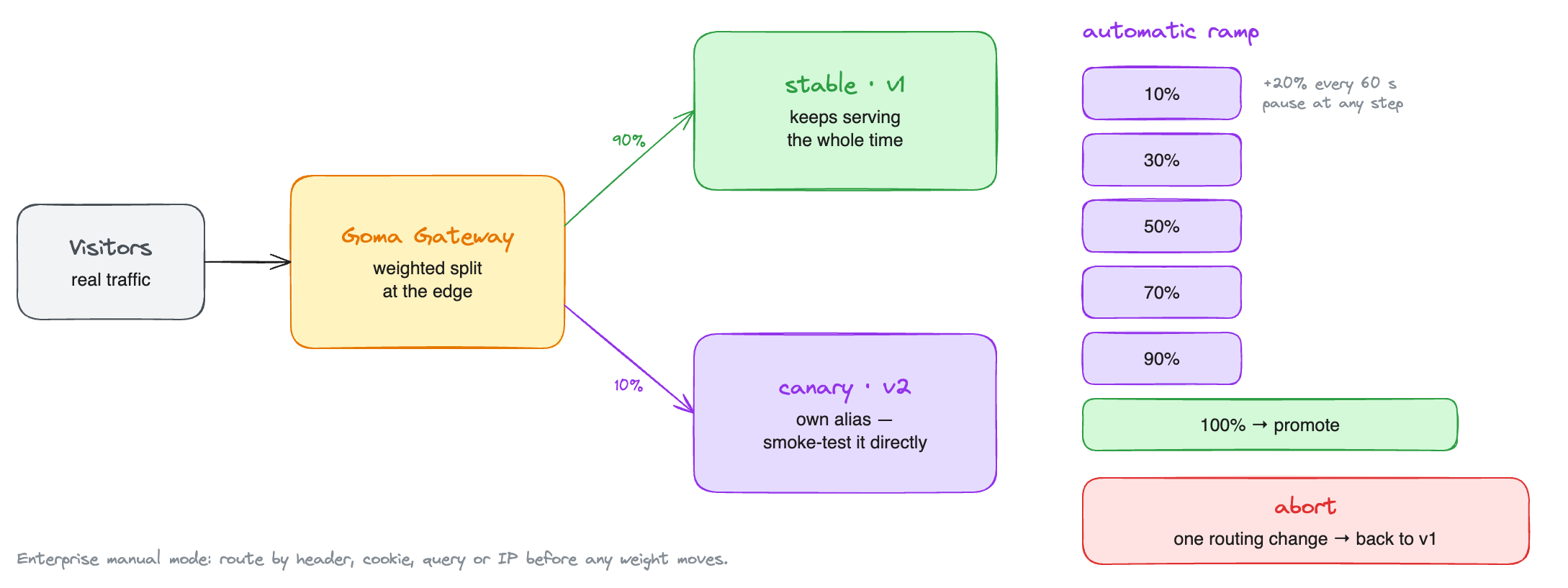
A canary runs a new release alongside the stable one and sends part of your traffic to it. If the new version misbehaves, most requests never touched it and you abort; if it holds up, you promote it and it becomes the stable release.
This is the opt-in alternative to the default rolling switch, which cuts over all at once as soon as the new container is healthy.
Starting a canary
Set the app's deploy strategy to canary in its settings, or start one from the app's
Deployments tab. Miabi starts the new release under its own network alias beside the stable one and
splits traffic between them at the gateway.
The setting applies to every deploy of that app, however it was triggered — the console, the
CLI, a pipeline run, or a GitOps reconcile. A manifest
can state it directly with
spec.deployment.strategy; leaving that field out keeps
whatever the app is configured with. The older top-level spec.strategy still parses, but setting
both is an error.
The first deploy of an app is always a straight rollout, whatever the setting says: a canary splits traffic against the running release, and on a first deploy there is none.
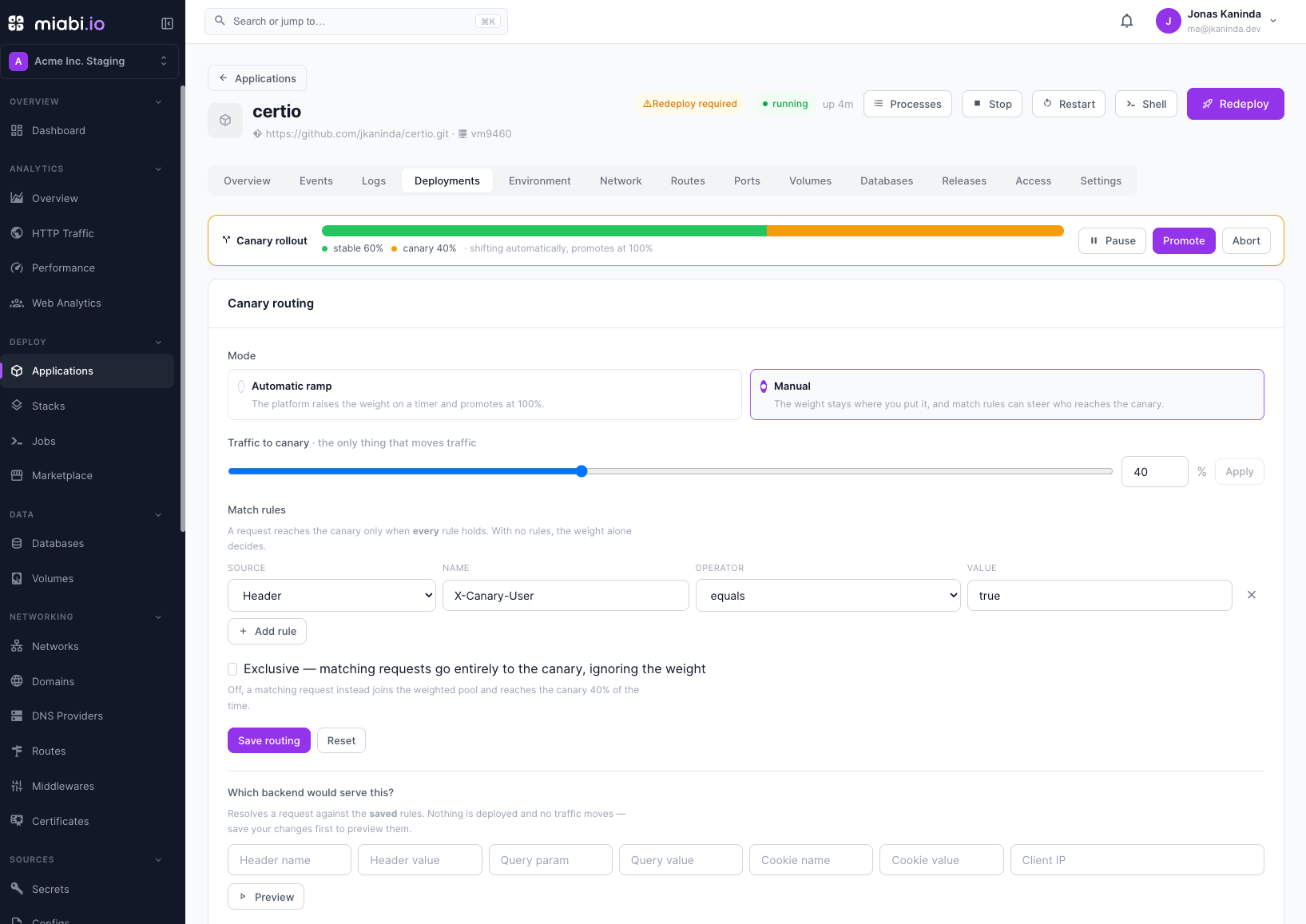
While a canary is live, the Deployments tab shows the current split and offers Promote (the canary becomes stable and takes all traffic) and Abort (the canary is stopped and discarded, and everything returns to stable).
Whatever the mode, a canary whose container dies is aborted automatically and traffic returns to stable.
Automatic mode
By default the platform drives the rollout on a timer. Three settings control it:
| Setting | Meaning |
|---|---|
| Initial weight | The share the canary starts at (default 10%). |
| Step weight | How much is added each step (default 20%). |
| Step interval | How long between steps, in seconds (default 60). |
The weight climbs until it reaches 100%, at which point the canary is promoted automatically. You can watch it and step in with Promote or Abort at any time, but the ramp decides when traffic moves.
Pausing the ramp
Pause holds an automatic rollout at its current split — the canary keeps its share, and the ramp stops adding to it. Resume hands the rollout back to the ramp from the same weight. Both are recorded on the app's timeline, and the panel shows how long the rollout has been paused. Pausing is part of the automatic ramp, so it is available in Community; to hold a canary with no intention of ramping it, use manual mode below.
Manual mode
Manual mode and match rules are part of the Enterprise edition and stay locked until they are unlocked by a signed license key. The automatic ramp above is fully available in Community. See Community vs Enterprise and Licensing.
Switch the canary panel to Manual and the ramp stands down. The weight then only ever moves because you moved it — a canary can sit at 5% for as long as you want it to, through a business day or a weekend, while you watch metrics.
You can switch modes mid-rollout in either direction. Going manual freezes the ramp where it stands; going back to automatic resumes it from the current weight.
Match rules
Manual mode also lets you decide which requests are eligible for the canary, rather than only how many. A rule reads one attribute of the request and compares it to a value:
| Source | What it reads |
|---|---|
header | An HTTP request header. |
query | A URL query parameter. |
cookie | A cookie. |
ip | The client IP address. |
Operators are equals, not_equals, contains, not_contains, starts_with, ends_with,
regex, and in (a comma-separated list).
A request must satisfy every rule to be eligible — rules are ANDed, not ORed.
Exclusive or weighted
Once a request matches, what happens next depends on one checkbox:
- Exclusive — matching requests go to the canary in full, ignoring the weight. Use this to pin a specific audience: your own staff, a beta cohort, a single customer.
- Not exclusive — matching requests join the weighted pool and reach the canary with the configured probability. Use this to send a fraction of a targeted audience to the canary while the rest of that audience stays on stable.
Requests that match nothing always go to stable.
An exclusive canary can be held at 0%, which means "nobody reaches the canary except the requests my rules select". That combination is only valid when it is exclusive; a non-exclusive canary at 0% would join the pool with no share, so its rules would look active while routing nothing, and Miabi refuses to save it.
Preview
The panel's "which backend would serve this?" preview resolves a hypothetical request against your saved rules and tells you whether it lands on stable or the canary, and why — showing the value each rule read and whether it held.
It is side-effect free: no deploy, no traffic, and it works before a canary is even running (it projects onto the weight the next rollout will start at). Save your rules first — the preview reads what is stored, not what is in the form.
Rules and the client IP
ip rule is only as trustworthy as your gatewayBehind a CDN or load balancer, the client address the gateway sees is whatever the proxy reports —
and with no trusted proxies configured, whatever the caller reports. An ip rule is then
attacker-selectable: anyone can put themselves in your canary by setting a header.
Configure proxy.trustedProxies on the gateway before relying on an ip rule. See the gateway's
running behind a proxy guide.
Miabi warns you at save time when a rule set routes on IP.
What promoting or aborting clears
Promote and abort both end the rollout, and both clear the match rules along with the weight — a stale rule surviving a promote would silently target whatever you canary next.
The mode is a standing preference and is kept: if you set an app to manual, its next canary is manual too, starting at the app's initial weight.
If your licence lapses
An app already routing on rules keeps routing exactly as it is. Dropping the rules on expiry would move production traffic as a side effect of billing, which is the worst possible moment to discover it. Instead the canary panel goes read-only with an explanation: what is configured keeps serving, and only changes are refused. Returning to the automatic ramp is always allowed, so you are never locked into a paid configuration.
Notes
- One canary release per app at a time. Deploying again supersedes the running canary.
- A manual canary holds indefinitely — there is no deadline. An abandoned canary sitting on half your traffic is its own kind of incident, so treat a long-running one as something to finish.
- Traffic splitting is weighted-random per request, not sticky per user. A non-exclusive canary at 20% means each request has a 20% chance, so one visitor may see both versions. Use an exclusive rule on a cookie when you need a stable assignment.